The Provider Enrollment Maintenance Portal is available for Wage Parity (WP), Electronic Visit Verification (EVV), and ETIN Transactions. For other transactions, additional maintenance and new enrollments, providers must use the Provider Services Portal (PSP).
First, read or print the instructions in Step 1 through Step 5. Once all instructions have been read, continue by clicking on the Click Here to Begin button at the bottom of this page.
Step 1 Sign Up for Your eMedNY ID |
 |
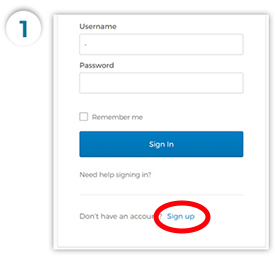 |
Click the Sign up link to create an eMedNY ID account. Clicking on the Sign Up link will take you to another screen where you must complete all fields to create a new account. After your account has been created, return to the login page. |
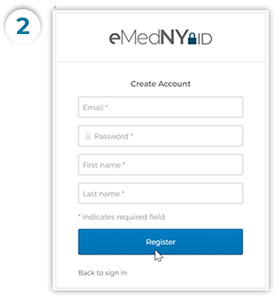 |
Fill In Your Information A valid email address is required. A verification code will be emailed to the address entered. Enter that code in the box indicated on the Create Account screen and click on Register. Create a password that follows the rules below.
|
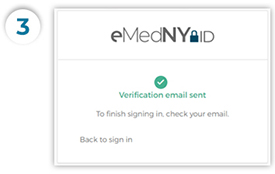 |
Check Your Email and Activate Your Account Click on the "Activate Account" link in your email. |
Step 2 Set Up Multi-Factor Authentication (MFA) |
|
|
MFA is an additional layer of security for logging into the Provider Enrollment Maintenance Portal. There are a number of MFA options that can be set up. You are required to set up ONE option, but it is recommended that you set up at least TWO options. These options are:
For more information and additional help on each of these MFA options, please Refer to this Guide. |
 |
Step 3 Setting Up a Forgotten Password Question and Security Image |
|
|
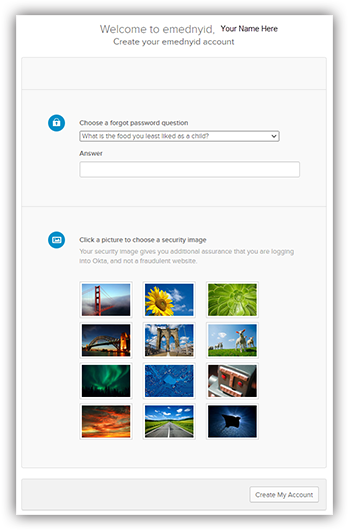
Using the dropdown, select a forgotten password question, and enter an answer. The answer must be at least 4 characters. Choose a picture that you will have to verify each time you log into your account. |
 |
Step 4 eMedNY Application Dashboard and Provider Enrollment Application |
|
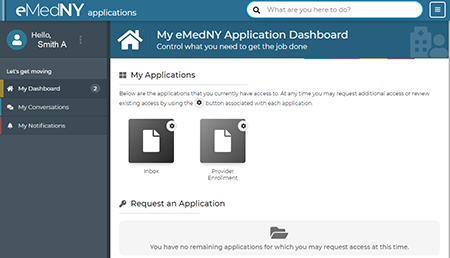
The eMedNY Application Dashboard shows an inbox and a Provider Enrollment icon. Click on the Inbox icon to view messages from the Department of Health. The Inbox is used by the Department of Health and the user for correspondence related to an application or transaction. Click on the Provider Enrollment icon to access the Provider Enrollment Portal where provider maintenance transactions can be completed and submitted. |
 |
Step 5 Linking Providers to Your Account |
|
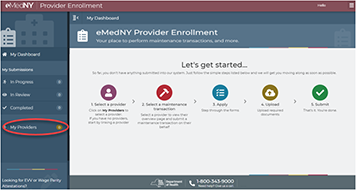 |
Before submitting any transactions in the Provider Enrollment Maintenance Portal, you MUST link a provider to your account. To do so, go to My Dashboard, and click on My Providers. |
|
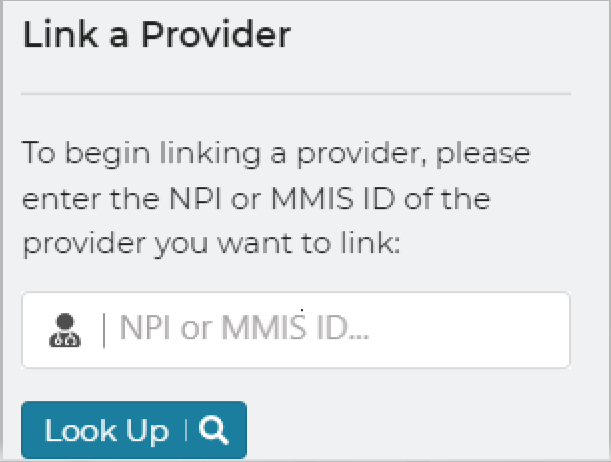 |
In the Link a Provider box, enter the MMIS ID or NPI of the provider whose maintenance transaction is being submitted. Click on Look Up. |
|
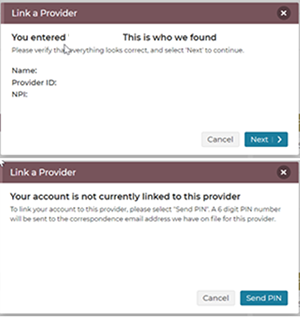 |
Verify the provider information is correct and click Next. Click the Send PIN button. The PIN email goes to the provider's current correspondence email address. Providers who have questions regarding their current correspondence email address can submit a Request to change email address form, or contact the eMedNY Call Center at 800-343-9000. Once the PIN number is received, it should be entered in the applicable field on the Provider Enrollment Portal. The provider will now be linked to your account. To see linked providers or to link additional providers, click on My Providers located on the left-hand menu. |
Having an issue? Feel free to give us a call at 1-800-343-9000.
 Copyright © 2026 DOH. All Rights Reserved. |
home glossary privacy policy site map self help contact us epaces login exchange login Web Portal |